GPT Image
Provider · OpenAI
What OpenAI's GPT Image models (2.5 and 2) are good at, what changed in 2.5, and how to write prompts they follow.
What is GPT Image
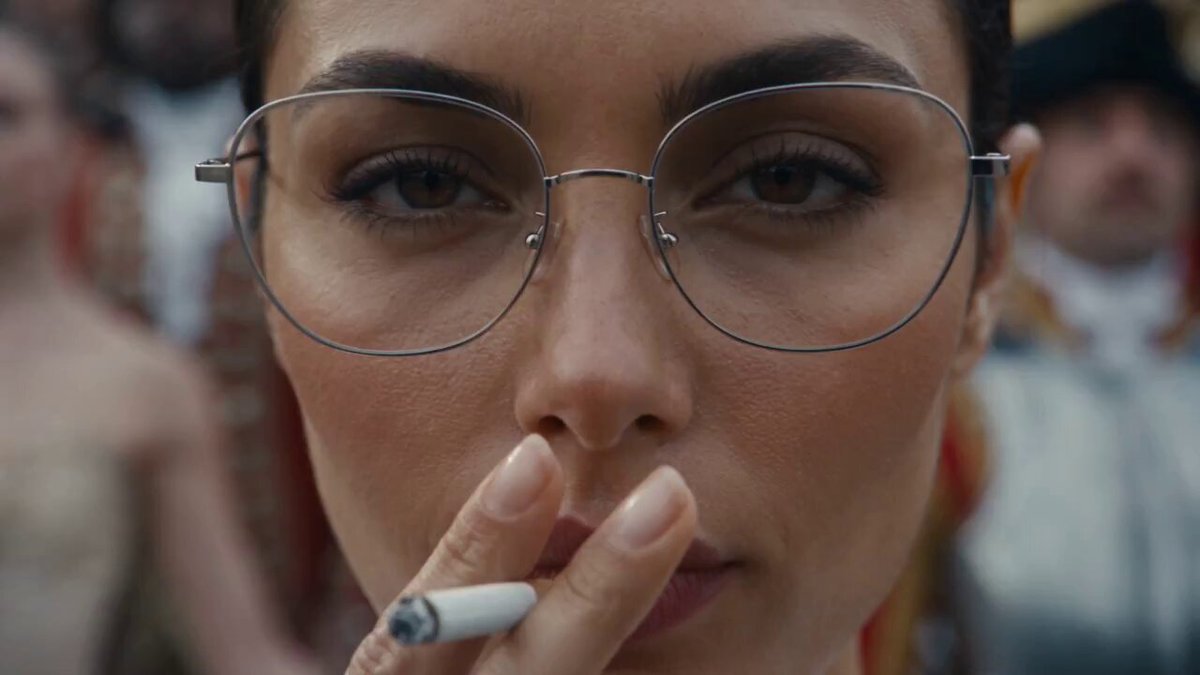
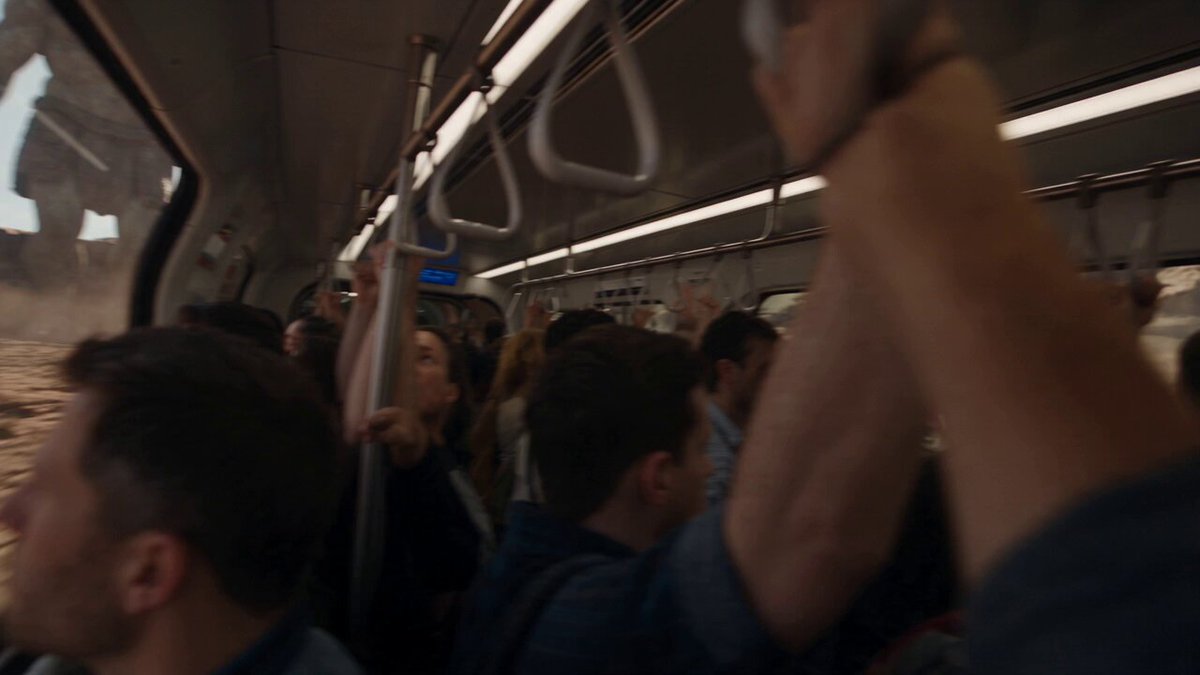
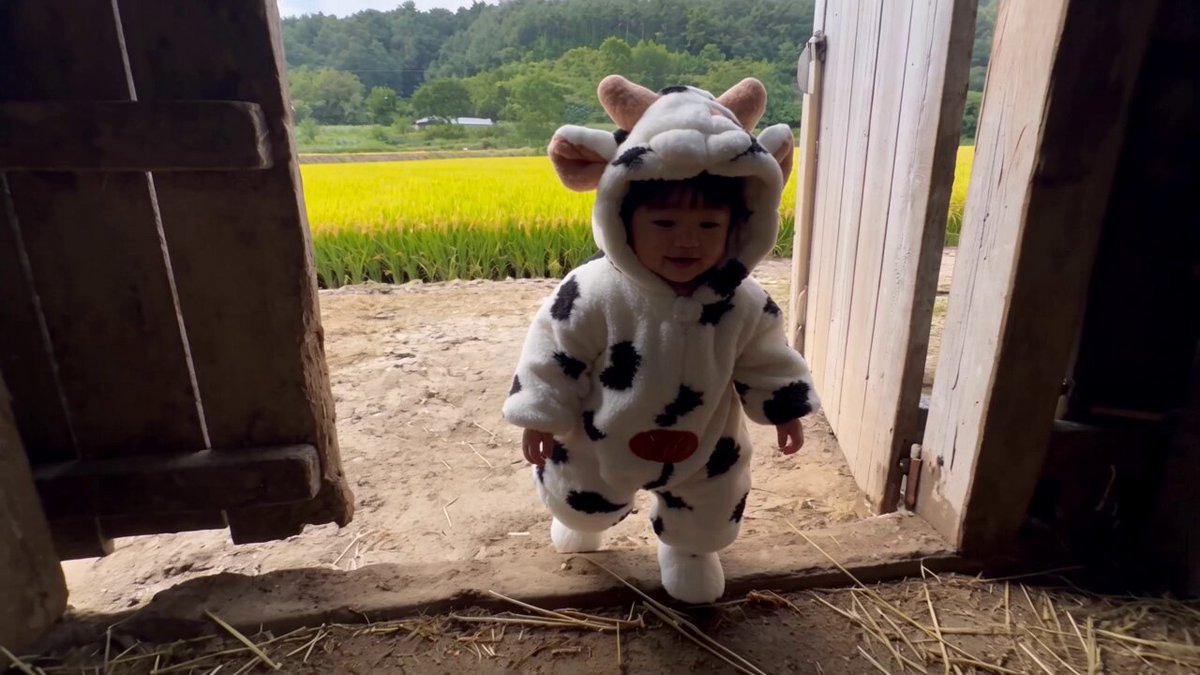
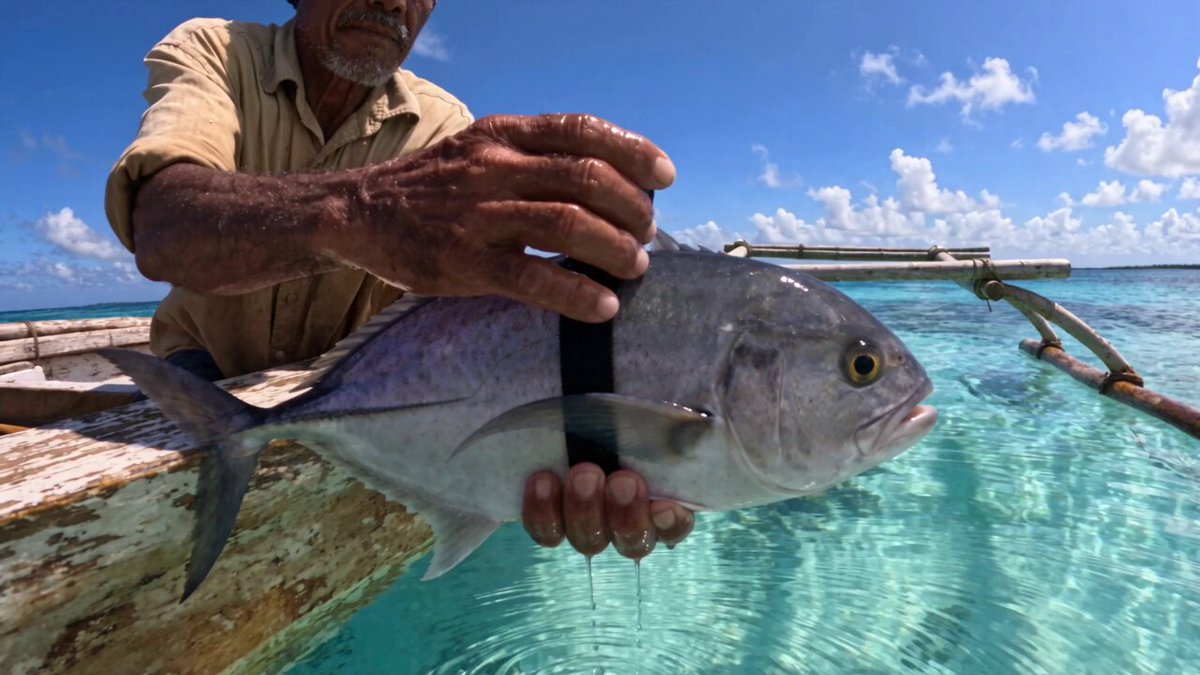
GPT Image is OpenAI's image generation and editing family. The current release is GPT Image 2.5 (September 2026); GPT Image 2 is the release before it, and most prompts in this library were first written for it. Both read a prompt the way a language model does — long, structured instructions land better than keyword soup — and both are among the strongest widely available models for rendering readable text inside an image: posters, packaging, UI mockups, signage, diagrams with labels.
What changed in GPT Image 2.5
- Two API models instead of one. GPT-Image-2.5 Flare is the everyday default — OpenAI quotes higher quality than GPT Image 2 at about half the latency. GPT-Image-2.5 Sunburst is slower and aimed at work where editing precision matters most: campaign creative, polished product shots.
- Better reference fidelity. Subjects from a reference photo survive edits more reliably.
- Steadier multi-turn edits. Follow-up instructions ("now make the jacket red") are followed more reliably across several turns.
- Lighting and texture. More natural light and richer surfaces out of the box.
Prompts written for GPT Image 2 carry over unchanged. Start with the same prompt; reach for Sunburst only when an edit series keeps drifting.
What it is good at
- Text in images. Headlines, labels, price tags, book covers, UI copy. Quote the exact string you want.
- Instruction following. Multi-clause prompts with explicit constraints ("three objects, centered, hard shadow, seamless background") come back close to spec.
- Product and poster work. Clean studio lighting, layout-aware compositions, brand-style graphics.
- Editing with references. Feed an image plus an instruction to restyle, extend, or swap elements while keeping the layout.
Why developers reach for it
The prompt is the interface. There are no seeds to hunt, no LoRAs to fetch, and no sampler settings to tune — a well-written paragraph plus an aspect ratio is the whole request. That makes it easy to template: the parts of the prompt worth exposing as controls (subject, palette, camera angle, medium) are exactly the parts you would have written by hand.
How to use the templates below
Each card is a prompt that produced the image shown. Open one to read the full prompt, copy it, and swap the parts you care about. The prompts work on both GPT Image 2 and 2.5, and usually transfer to other models with minor edits — the text-rendering instructions are where the difference shows most.
Supported settings
- Capabilities
- Text to imageImage editingText in imagesQuality tiersUp to 4K
- Resolutions
- 1k2k4k
- Aspect ratios
- 1:12:33:23:44:39:1616:9
Pitfalls to avoid
- Long paragraphs dilute instructions. Lead with the subject and the shot, then add style, then add constraints — the model weights the opening of the prompt most heavily.
- Text inside images works best when you quote it exactly ("a sign reading `OPEN 24H`") and say where it goes. Describing text loosely gets you plausible-looking gibberish.
- Negative phrasing ("no people") is unreliable. Describe the scene you do want ("an empty street at dawn") instead.
- Quality tiers change price, not composition. If a render is wrong, fix the prompt before you raise the tier.
- Reference images steer style and layout, but conflicting instructions in the text usually win. Keep the two aligned.
GPT Image prompt templates
- 3D Caricature Drama PosterUse when you want a mock movie poster that tells a three-beat gag with your own captions over pre-set characters and scenes.
- 3D Evolution Staircase InfographicUse when you have a flat evolution timeline graphic and want it rebuilt as a realistic 3D staircase poster.
- 3D Optical Table Hardware FigureUse when you want a rendered hardware overview of a dual-SLM polarization bench for a slide and the caption wording does not matter.
- Anatomical Food Specimen PosterUse when a food brand or science post wants a single ingredient presented like a natural-history specimen rather than a dish.
- Anime Film Pitch Poster and Model SheetsUse when you are pitching an original anime film and want the poster and its character model sheets on one page with your names on them.
- Anime Fruit Campaign Banner SetUse when a seasonal fruit promotion needs a full banner family in one anime style for shop pages, socials and icons at once.
- Anime Genga Key Animation SheetUse when you want an original character shown as a mock key drawing from an anime studio, complete with margin notes and codes.
- Anime Idol Goods Catalog FlyerUse when a virtual idol or VTuber needs a concert goods sheet that shows every item in one consistent color line.
- Anime Martial Arts Duel SceneUse when you need a dynamic two-fighter anime action panel and want to name the venue and the sign above the ring.
- Anime Mascot Candy Brand BoardUse when a mascot character needs a full candy-brand presentation with packaging, poster and merch on one sheet, in her own color and motif.
- Anime VTuber Profile SheetUse when a new VTuber needs a debut profile card that lays out name, birthday, schedule, tags and links in one image.
- Anthropomorphic Therapy SessionUse when you want a one-panel visual pun that turns an object's flaw into a feeling, set in a warm therapist's office.
- Autumn Kimono Over-the-Shoulder PortraitUse when you want an autumn kimono portrait with a soft, blurred garden behind the subject and only her look left to decide.
- Awkward Delivery Manga PageUse when you want a short comedic manga page about an awkward doorstep exchange and only need to recolor the woman and rewrite the lines.
- Backstage Cosplay Dressing Room PortraitUse when you want a behind-the-scenes cosplay portrait with a specific hair and costume color and your own weapon prop.
- BBQ Slice-of-Life Anime Key VisualUse when you need a poster for a fictional food-themed anime with a fixed four-girl cast and want to rename the show and restyle the lead.
- Bottled Tea Promo PosterUse when a bottled drink launch needs a splashy retail poster with a price sticker and a where-to-buy footer in Japanese.
- Brand Envelope Product AdUse when you have a product photo and need it to sit inside an existing brand look, the same look across every product.
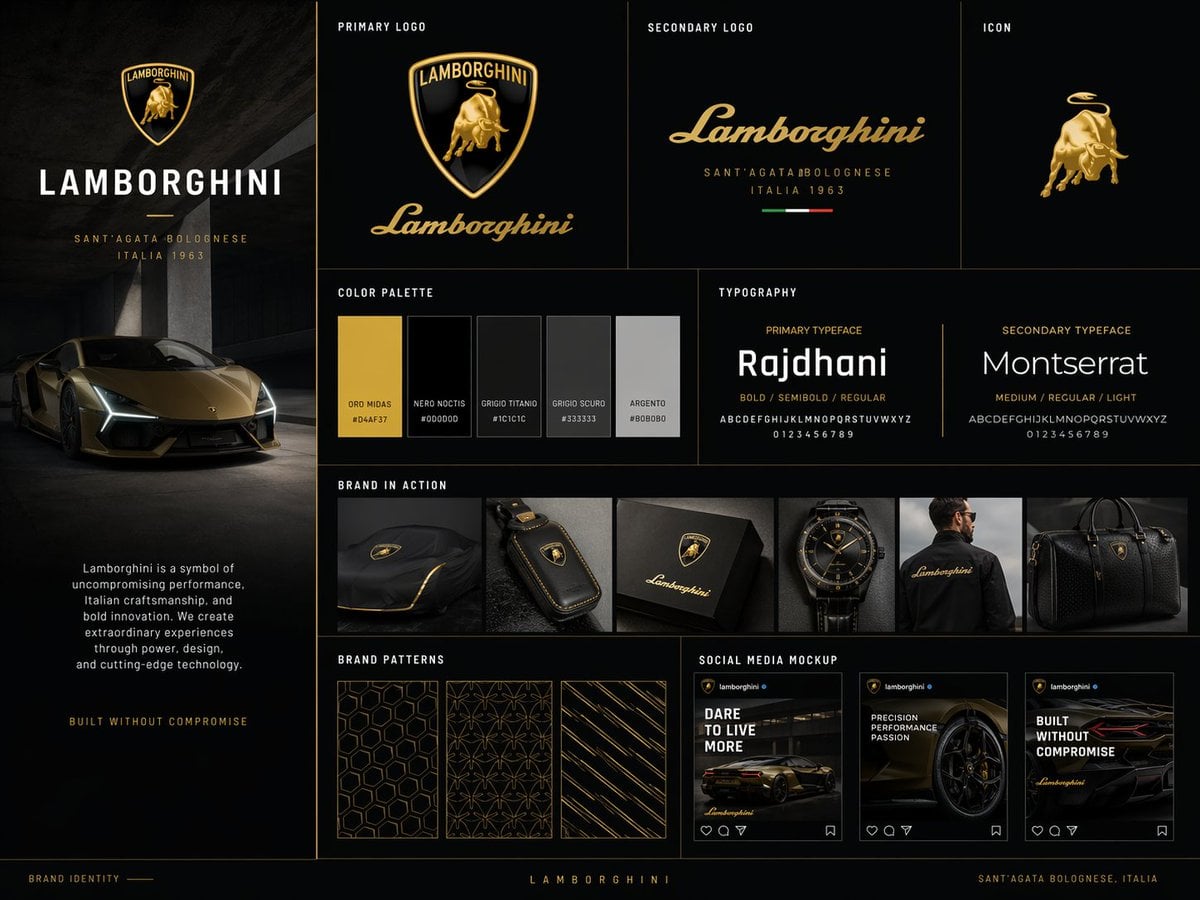
- Brand Identity System BoardUse when you need a one-image brand guidelines sheet to present a logo concept, with the specification panels already laid out.
- Brand Packaging Family DisplayUse when a consumer brand needs a packaging-system overview poster for a pitch and you have only the name and the product category.
- Camera Imaging Atlas Exploded ViewUse when you want a magazine-style technical poster explaining how one camera body turns light into files, from lens mount to card slot.
- Cat-Ear VTuber Live ThumbnailUse when a gaming-room VTuber stream needs a thumbnail with a big two-word Japanese headline and a LIVE badge already in the corner.
- Causal Chain of a PhotographUse when you want a step-by-step how-a-photo-is-made poster and would rather keep the thirteen fixed steps than write your own.
- Champions League Match Infographic PosterUse when you want a broadcast-style hype poster for one Bayern-PSG tie and only need to update the round, the date and the players.
- Character Fan Goods LineupUse when you want a quick merch table concept for a character archetype and do not need a specific design locked in.
- Cinematic Car Billboard PosterUse when a car launch or dealer campaign needs a single hero car standing against its own brand name at billboard scale.
- Cinematic Instant Noodle AdvertisementUse when an instant-noodle or packaged-food brand needs a high-energy hero visual for posters or social.
- Claymation Teen Girl with HeadphonesUse when you want this exact Sony claymation cover as a starting prompt; the controls rename its field labels rather than its content.
- Clone Crowd Thriller Manga SpreadUse when you want a psychological-horror manga opener about being replaced by copies of yourself and only need to cast and title it.
- Coin-Op Ride Candid PortraitUse when you want a deadpan street-photo portrait that pairs a subculture outfit with a kiddie ride and a real-looking storefront sign.
- Collector Figure Launch BoardUse when you need a hype-style collectible reveal board and can live with four scientists as the fixed subjects.
- Corporate Brochure Visual SystemUse when a company needs a brochure concept that reads as one designed system across every page, not a stack of text slides.
- Cosmic Neon Course BannerUse when a beginner-friendly course or guide needs an anime-style promo banner and you mainly want to update the hook, button and year.
- Course Promo Banner GridUse when you need four A/B banner variants for one course or school and want to write every headline yourself.
- Cozy Self-Care Tips InfographicUse when you need a soft, shareable tips poster for a social feed and the eight tips can stay exactly as written.
- Custom Building Block Set PhotoUse when you want a fan-designed brick set to look like a real boxed product photographed at home, without a real toy maker's branding.
- Dark Mode Hardware Spec InfographicUse when an electronics listing needs a long-form spec graphic and the product is a boxed power supply or driver.
- Dark Mode Men's Skincare Landing PageUse when a men's grooming product needs a sleek dark storefront mockup and the brand has to appear on both the header and the bottle.
- Dermatologist Skincare Landing PageUse when a sensitive-skin product needs a storefront mockup that leans on clinical cues such as lab glass and a doctor-supervised badge.
- Diabetes Pathway Medical PosterUse when a health-education sheet has to lay out the whole diabetes cascade at once and you want to set its palette and centerpiece.
- Die-Cut Restaurant Promo StandeeUse when a food shop needs a floor-standing promo board mocked up as a finished cut-out, not a poster on a wall.
- E-commerce Main Image - 9-Panel Product TVC StoryboardUse when you have one plain product photo and need a nine-shot Chinese TVC storyboard board for a vertical ad.
- Editorial Ink Illustration TemplateUse when you want a fashion-poster portrait with sketchbook energy rather than a photo, and have a person and a road-trip place in mind.
- Elemental Luxury Perfume PhotographUse when a fragrance needs a campaign-grade bottle shot and you can describe the bottle but not the set around it.
- Expedition Planning Command BoardUse when you need to pitch or document a trek, climb or fictional mission as one planning board with map, gear and destination.
- Exploded Luxury Watch Technical SheetUse when you want a watch shown as engineering, gears and jewels laid out like a Swiss brochure, rather than a lifestyle shot.
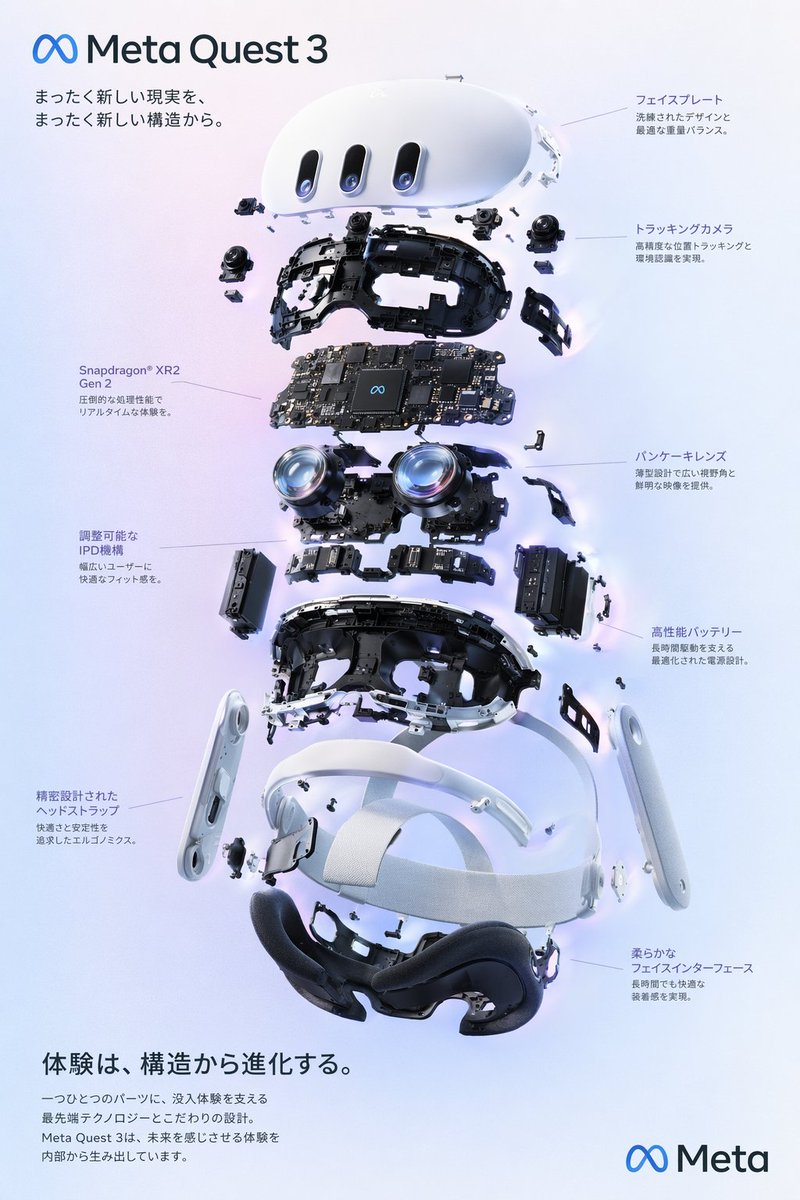
- Exploded View Product PosterUse when a hardware launch needs a spec-sheet poster that shows what is inside the device, laid out in Japanese.
- Explosive Japanese Sales Page PosterUse when you need a deliberately loud, infomercial-style Japanese sales poster and only the headline, numbers and closing line change.
- Fashion Casting Contact SheetUse when you need a casting or test-shoot sheet showing one face four ways, for a portfolio or before a real shoot.
- Fiber to Fit Garment Design PosterUse when you need to show how a garment goes from raw fiber to finished fit on one sheet and want to name the piece and the closing line.
- Five-Panel Mixed Style CollageUse when you want to test how exactly a model renders set values across styles: a clock time, a named five-card hand and two die faces.
- Floral Serum Landing Page HeroUse when a skincare serum needs a mock storefront hero in Japanese with claims, badges and stats already laid out around your brand.
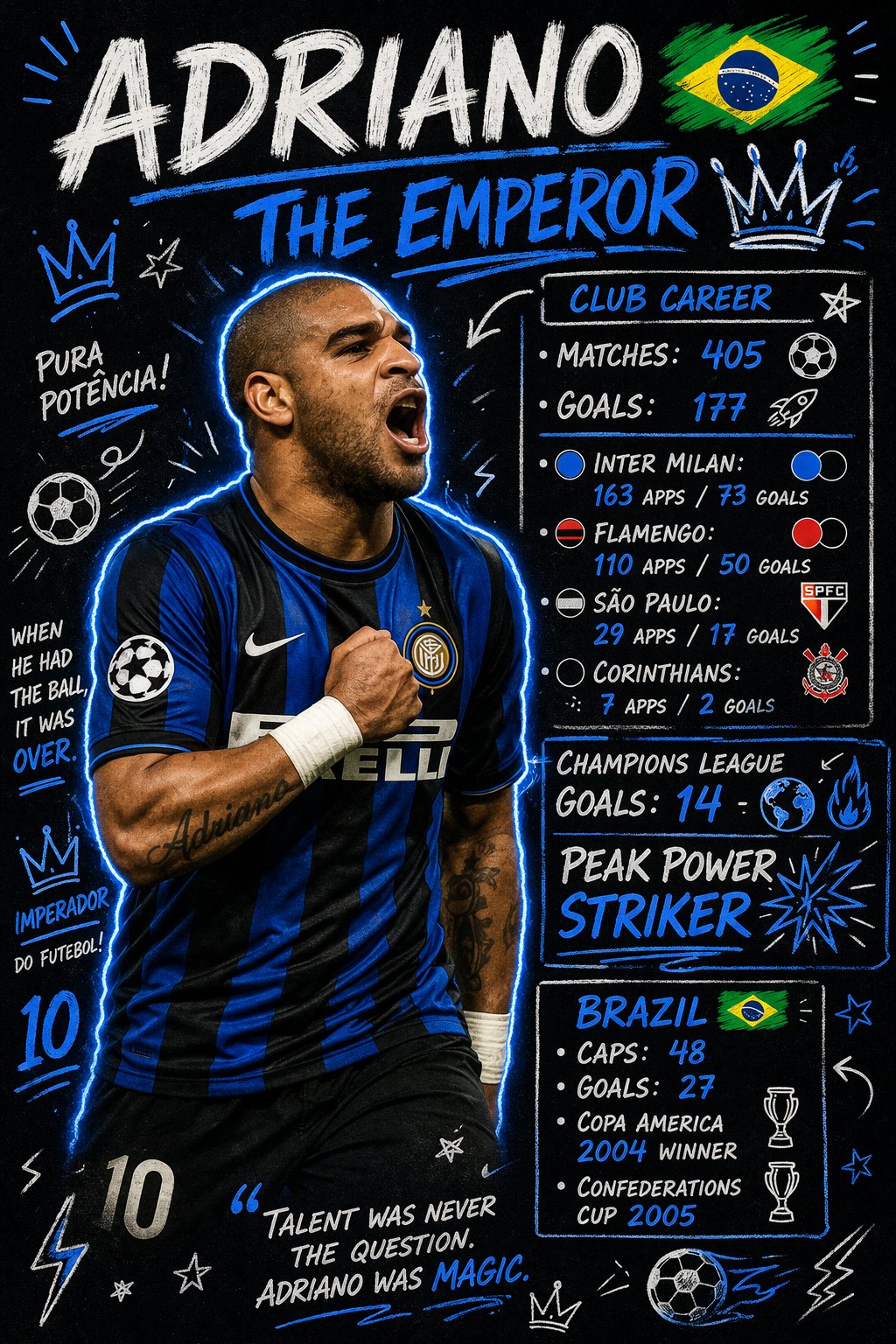
- Football Player Doodle Stats PosterUse when you want a fan poster for one player with their club and national-team numbers written around the photo.
- Forced-Perspective Anime WarriorUse when you want a single action shot of an armored heroine whose weapon lunges out of the frame and you need to set her colors and blade.
- Forest Restaurant Anime Movie PosterUse when you need a storybook film poster for a fictional family movie and only want to name the restaurant and retitle the film.
- Four Season Packaging Campaign GridUse when one product needs a seasonal campaign set that proves the packaging holds up across four moods.
- Four-Category Ad Banner GridUse when you need four unrelated product banners on one sheet to show a range of ad styles or to test a layout system.
- Four-Industry Ad Banner GridUse when you need one sheet showing how a single ad style carries across four industries, for a portfolio or a pitch deck.
- Four-Panel Media Satire ComicUse when you want a caption-heavy editorial-cartoon strip about a profile that backfires on its subject and only need style and outlet.
- Four-Profession Portrait GridUse when you need one person shown in several careers, as for a hiring page, a casting board or a 'many hats' post.
- Four-Up Fake Movie Poster GridUse when you want a sheet of joke film posters whose scenes, taglines and casts are already written and only the four titles need naming.
- Futuristic Lobby Three-Panel MangaUse when you need a quick corporate sci-fi manga beat of a woman entering a tower lobby and talking to her earpiece AI.
- Game Dev Mage Manga SpreadUse when you want a programmer's-struggle gag told as a fantasy manga and need to swap in your own bug name and victory cry.
- Gold Laurel Promo BannerUse when a Japanese AI side-hustle course wants a flashy gold award-style thumbnail with laurel wreaths and stacked selling points.
- Gold Text VTuber Debut ThumbnailUse when a VTuber debut needs a loud gold-lettered thumbnail with rainbow rays, a retro mic and a badge for the stage name.
- Golden Flow Oriental City PosterUse when you need a mythic city tribute poster and only the title line, date and credit have to change.
- Gothic Hall Kneeling Figure SceneUse when you need a moody wide establishing shot for a fantasy or horror project and want to swap the kneeling figure's outfit and props.
- Gout Pathway Medical InfographicUse when you need a clinical poster that walks through how gout develops and only the headline and centerpiece need changing.
- Graffiti Sketchbook IllustrationUse when you want an idea or a role drawn as a quick, scribbled sketchbook page rather than a finished illustration.
- Guided Tour Science Picture Book PageUse when you need to show children how a place or process works as one illustrated tour with numbered stops.
- Hand-Drawn LINE Sticker SetUse when you need a themed animal sticker pack roughed out on one sheet before drawing the final set.
- Handheld Miniature City DioramaUse when you want one city summed up as a keepsake-scale model, with its flag and best-known landmark front and center.
- Herbal Soup Mix Packaging LabelUse when you have a chicken-illustration label and need it recomposed into a soup-mix pack with new headline, ingredient and usage copy.
- High-Contrast Typographic Profile PosterUse when you want a poster that reads as one person's profile and one message, for a gig, a talk or a music release.
- Historical Event Diorama Map GridUse when you need a history explainer that shows where an event happened and who lived through it, in one four-panel board.
- Historical Figure Tweet MockupUse when you want a historical-figure-on-social-media gag image in which a Ming emperor announces his reign to a modern feed.
- Idol Polaroid Photo CollectionUse when a character or idol persona needs a set of fan-service photo cards with a handwritten autograph.
- Illustrated City Food MapUse when you want a souvenir-style illustrated map of a city's street food, with pins, a legend and a mascot in one poster.
- Ingredient Landscape Oil AdvertisementUse when an oil or extract brand needs a hero poster that makes the raw ingredient the whole world around the bottle.
- Isometric Landmark DioramaUse when you need a landmark graphic with the country name on it, for a travel post, a set of city cards or a geography lesson.
- Isometric Machine Cutaway DioramaUse when a product or engineering post needs a see-inside hero image of one machine with its name set large above it.
- Isometric Travel PosterUse when you want a city travel print in a strict three-color mid-century style rather than a full-color skyline.
- Japanese Ad Banner 2x2 GridUse when you need a sheet of Japanese-style digital ad banners at once and only the destination, product name and price need swapping.
- Live Sports Stat CardUse when you want a stat card for a recent match or player performance and would rather have the facts looked up than typed in.
- Live Stream Shopping UI MockupUse when you need a realistic live-commerce screen for a pitch deck or a UI concept and only the host and product change.
- Livestream Commerce UI MockupUse when you need a realistic live-commerce screenshot for a deck or a feature demo without an actual stream to capture.
- Logo and Brand Identity Prompt SetUse when you are starting a brand from a name and an industry and want the strategy, palette and type argued before any logo.
- Low-Angle Crouching Anime PortraitUse when you want a low-angle, wind-in-the-hair anime portrait over a schoolyard and only the hair color needs deciding.
- Luxury Cream Jar Beauty AdUse when a face cream needs a single-product luxury ad with Japanese headline copy and a button, rather than a lineup or a lifestyle shot.
- Magical Girl Glass-Shatter LandingUse when you want a high-impact hero-landing shot of an original magical girl, shards flying at the viewer, in your own colors.
- Mars Trip Livestream Sales ScreenUse when you want a joke stream-commerce screenshot that sells an impossible offer at an everyday price, with the buy card copy your own.
- Mascot Brand Identity SheetUse when you need a one-image overview of a mascot program to pitch or brief, before any real design work exists.
- Mascot Character Design DocumentUse when you want a single sheet that looks like a complete mascot development process for a brand, not just one character render.
- Match-Day Supporter Transformation BoardUse when you have a photo of a woman and want a captioned match-day transformation sequence in her team's colors.
- Microwave Deity Mascot Character SheetUse when you need a Japanese-style mascot reference sheet with trait boxes and blessings for a contest entry or character pitch.
- Mid-Century Isometric Travel PosterUse when you want a screen-print style city poster with one bold ink and the city's name set in type at the top.
- Miniature Car on Paper MapUse when you want a travel, road-trip or relocation visual that puts one city's map under a specific vehicle.
- Miniature City Travel CardUse when a destination needs a premium souvenir-style visual for a travel campaign or a city guide cover.
- Minimalist Automotive Poster TemplateUse when a car needs a clean editorial poster for Reels or Stories with typography as the only decoration.
- Mixed-Media Editorial PortraitUse when a portrait needs an expressive, poster-like treatment with collage and paint rather than a clean photo.
- Mobile Livestream Flash Sale InterfaceUse when you need a flash-sale livestream mockup for a home-goods or apparel shop, with a real-looking chat and countdown.
- Modular Brand Icon SystemUse when an app or brand needs a first pass at a matching icon family and a rough direction is enough to brief from.
- Monochrome Watercolor City Travel PosterUse when you want a wall-art or stationery style city print in a single ink color rather than a full-color travel illustration.
- Mythology Character Avatar GridUse when you need a matching set of cast portraits for a story world, laid out as a labelled avatar sheet.
- Neon Doodle Gallery Snapshot TemplateUse when you want a candid phone snap turned into a loud doodled social post with a personal handwritten caption.
- Neon Drama Reaction ThumbnailUse when a Korean-language reaction or drama-recap video needs a loud anime thumbnail and you want your own headline and bubble.
- Neon Green Side Hustle ThumbnailUse when a Japanese-language money or side-hustle video needs a high-contrast thumbnail and the checklist copy is already written.
- Neon Leopard VTuber ThumbnailUse when a pink-and-black VTuber channel needs a chat-stream thumbnail and only the greeting and stream rules change week to week.
- Neon Pop School Ad Banner GridUse when a youth-facing school needs a punchy banner set with neon and pop variants and you want to rewrite most of the headlines.
- New Wave Torn Paper Film PosterUse when a film night, gig or launch wants a raw analog poster and you have a headline and one line of detail to set on it.
- Nine-Panel Character Expression SheetUse when you have one character design and need a consistent set of expressions for reference, emotes or a portfolio page.
- Nostalgic Memory Grid LayoutUse when you want one image that reads as a whole photo album of a single person or object across many moments.
- Oblique Perspective Typographic PosterUse when you have a word or short phrase, in Chinese or English, and want it turned into a bold graphic-design poster rather than a photo.
- Open-World Game Screenshot HUD MockupUse when you need a believable fake game screenshot with mission text and a watermark for a pitch, parody or mockup.
- Optical Bench Setup DiagramUse when a methods figure needs a labeled breadboard layout for a two-SLM polarization setup and you want to write the caption yourself.
- Overhead Instagram Post Dining TableUse when a brand or creator wants a real-world photo that doubles as a mock post, with their handle on it, for a launch or a feed break.
- Passport Pop-Up Country DioramaUse when you want a travel or tourism visual that ties a single country's landmarks to its own passport in one object.
- Passport Worlds Atlas SceneUse when a trip across several cities needs one hero visual that shows all the destinations at once.
- Pastel Blue Livestream ThumbnailUse when a soft blue cloud-themed VTuber channel needs a chat-stream thumbnail and wants to swap the hair and rewrite the three badges.
- Pastel Bunny VTuber ThumbnailUse when a sweet pink bunny-themed VTuber channel wants a ready-made chat thumbnail and rarely changes more than the title or list.
- Pastel Paper-Collage Travel PosterUse when you want a calm, gallery-style landscape travel poster of a place in cut-paper pastels instead of a photo.
- Patterned Fashion Collection CatalogUse when a textile print needs to be shown across a small collection as a catalog page rather than as a lone swatch.
- Photo and Watercolor Ad Banner GridUse when you need a warm, home-and-family banner set for a course and can keep the written headlines as they are.
- Pink Peach VTuber Stream ThumbnailUse when a peach-and-kimono VTuber look is what you want and the stream copy only needs a title and a couple of house rules.
- Playful Brand Icon SetUse when an app or a brand needs a first pass at a coherent icon family and you can list the features each icon should represent.
- Podcast Livestream YouTube MockupUse when you want to preview how a podcast stream will look as a full YouTube page, chat and lower third included, before going live.
- Pore Care Skincare Landing HeroUse when an acne or pore product needs an English-labeled storefront hero with stats and feature icons around a two-bottle shot.
- Premium Brand Kit BoardUse when you need a quick brand-identity overview board for a pitch or portfolio and have only the name and colors to start from.
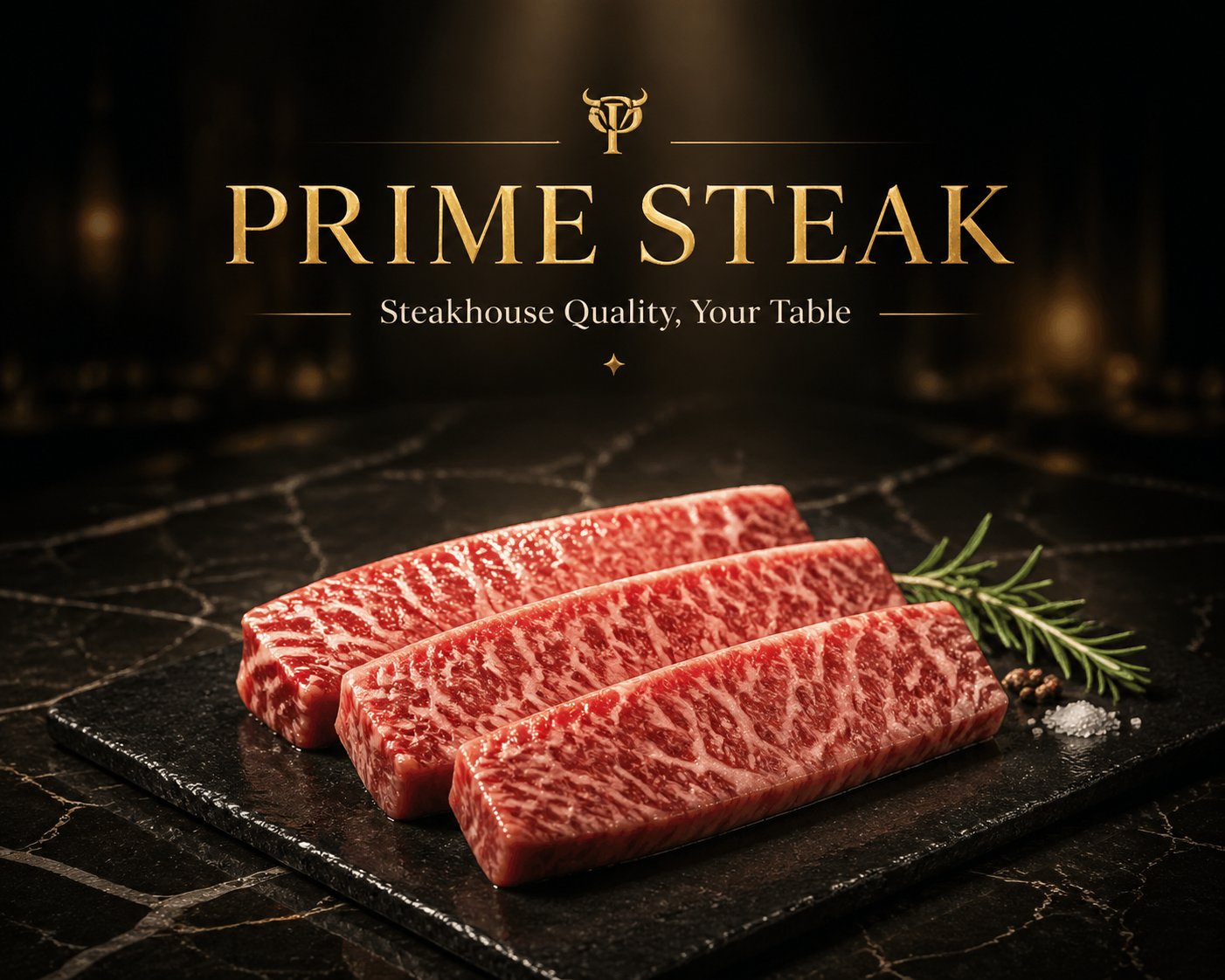
- Premium Meat and Seafood Hero ShotUse when a butcher or seafood brand needs a menu-grade product shot with its name and type styling locked in.
- Preschool Fruit Vocabulary CardUse when you are making a set of matching word cards for young children and want the same layout every time.
- Retro Automotive Travel Poster TemplateUse when a specific car and a specific road need a flat-ink 1970s tourism poster with a headline and a real brand logo.
- Rough Ink Portrait With Companion AnimalUse when you want a portrait poster of someone with their pet or spirit animal, drawn rough rather than rendered.
- Samurai Anime Character Reference SheetUse when you have a warrior character to document as a studio-style settings sheet and only need to name and recolor the armor.
- Satirical Product Ad GridUse when you want a parody catalog page that sells nonsense products with the full visual grammar of real ads.
- Scientific Encyclopedia Knowledge GraphUse when you want one animal, plant or person laid out as a dense museum-style reference plate with a calligraphic title.
- Seed-to-Fruit Botanical PosterUse when you want an educational plant life-cycle poster for one species and prefer the eight-panel science layout to stay fixed.
- Seven-Day Outfit Lookbook ChartUse when you need a Monday-to-Sunday outfit planner as one shareable chart and only the model and header copy have to change.
- Slogan-Shaped Typographic IllustrationUse when a brand needs a playful typographic graphic for social or merch where the slogan itself becomes the picture.
- Sports Car in Aircraft Hangar PhotoUse when you need a cinematic hero shot of a specific car and want an aviation backdrop instead of a plain studio sweep.
- Sportswear Livestream Floating Card UIUse when a pitch or ad needs a live-commerce screen with a visible chat conversation and a highlighted product card.
- SQL Collectible Toy Packaging GridUse when you want to mock up retro toy packaging for four franchises at once, as fan art or a nostalgia post.
- Starfall Mirror-Water Anime IllustrationUse when you have a character sheet and want her placed in a cinematic starfall scene with a perfect water reflection.
- Starry Purple VTuber Debut ThumbnailUse when a new VTuber needs a first-stream announcement image with a fixed elegant purple design and only the name, blurb and date to fill.
- Streamed Piano RecitalUse when you need a quick mock of a concert stream on a specific platform and only want to say who plays, what and where.
- Surreal Unwrapping Product RevealUse when a snack, confectionery or drink brand needs a dramatic single-product hero shot for a launch or a viral-style ad.
- Teasing Couple Light Novel CoverUse when you need a romance light novel cover with a fixed teasing-couple pose and only the title, taglines and his hair color to set.
- Tech Product Launch Livestream MockupUse when you want a tongue-in-cheek shopping-stream mockup of a tech launch and only need the presenter and product name swapped.
- Tennis Apparel Livestream Shopping UIUse when you need a mockup of a live-selling room for a sportswear listing, with your shop name and product on the cards.
- Three Teachings Ink Scroll InfographicUse when you want a classical Chinese manuscript-style comparison of the three teachings and only need to pick its style and format.
- Three-Frame Luxury Campaign GridUse when a fashion or sportswear brand needs a triptych-style campaign frame with three distinct looks side by side.
- Trad Goth Portrait MakeoverUse when you have a photo of someone and want to see her restyled into a subculture look without changing the shot.
- Travel Food Postcard TemplateUse when a destination food post needs one image that sells both the dish and the place it comes from.
- Travel Planning Tabletop SceneUse when a destination or eSIM campaign needs a diorama-style hero image with a map, landmarks and travel props.
- Tropical Product Ad PosterUse when a drink or beauty product needs a tropical campaign poster with a model beside it and the label kept visible.
- True Crime Documentary ThumbnailUse when a true-crime or investigative video needs a thumbnail built around one face and a web of clues, with your own scenes and document.
- Underground City Systems AtlasUse when a talk, print or feed post needs a dense infrastructure poster for one city and you mainly need to rename it and set the palette.
- Vintage 1960s Beer Ad PosterUse when you want a nostalgic mid-century beer ad for a bar wall, a craft brand or a period-styled campaign.
- Vintage 35mm Flash Snapshot PortraitUse when you want a candid, amateur-looking flash photo with film grain instead of a polished studio portrait.
- Vintage Travel Postage StampUse when a destination needs a souvenir stamp graphic for a print, a sticker or a travel-brand asset.
- Viral Campaign Case Study Landing PageUse when you need a mock agency results page, with numbers, timeline, charts and testimonials, to show how a campaign write-up could look.
- Voxel Game Screenshot MockupUse when you need a convincing next-gen block-game screenshot or parody with your own title logo and the HUD already in place.
- Watercolor Picture Book CoverUse when you want a joke or real children's book cover in soft watercolor and need to set the character, the pose and the Japanese title.
- Watercolor Travel Journal PostcardUse when you have a trip photo and want it as a hand-painted journal page with your own note, date and place on it.
- Wet-Skin Chiaroscuro Editorial PortraitUse when you need a high-fashion editorial headshot built on wet skin and hard light rather than a set or wardrobe.
- Whiteboard Marker Character DrawingUse when you want fan art that looks hand-drawn on an office whiteboard, with a title and a name lettered beside it.
- YouTube Launch Livestream MockupUse when you need a believable screenshot of a launch livestream page for a product name of your own, UI chrome and all.
Featured GPT Image prompts
Editable templates are on the way. Until then, these are the cases worth starting from.